Fork
Description
The fork functionality provides the possibility to run one or more concurrent processes and, optionally, wait for all these processes to finish before continuing with the next step, from within your flow.
The functionality consists of two separate custom steps, which are described below.
SAS Viya Version Support
Both custom steps were created and tested on Viya 4, Stable 2025.04
Fork Run
This custom step lets you run a deployed flow or a deployed SAS program.
You can deploy an object, from within SAS Studio Flow, by selecting a SAS Studio flow or SAS program, right click and select the 'Deploy as a job' option.
User Interface
Tab: Fork Run Properties
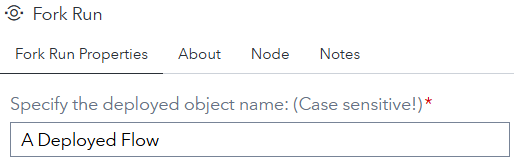
The 'Fork Run' custom step needs the name of the deployed object, flow or program, to run the object. The 'Specify the deployed object name (Case sensitive!)' setting gives you the possibility to enter that name.
Note that the name is case sensitive and needs to be unique throughout the SAS Viya environment.
Tab: About
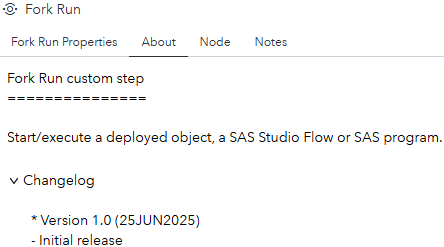
This tab provides information on what this custom does and it contains the changelog.
Output table
The custom step creates, besides starting the specified deployed object, the following output table:

- job_name: The name of the deployed object the end-user specified.
- start_dttm: The timestamp the deployed object is started.
- state: Contains the initial run-time status.
- id: The job execution id.
Fork Wait
It will monitor the status of each of the attached, up to 8, 'Fork Run' steps and will wait for all steps to finish before continuing with the next step(s) in your flow.
Optionally you can specify the custom step to abort the complete flow in case at least one 'Fork Run' step failed to execute without errors.
User Interface
Tab: Fork Wait Properties

Optionally you can specify the custom step to abort the complete flow in case one or more of the processes started with the 'Fork Run' custom step failed. When you check this option and you have 1 or more failed processes, you will see that in the following two ways:
1. On the flow canvas:

2. In the log file:

Tab: About
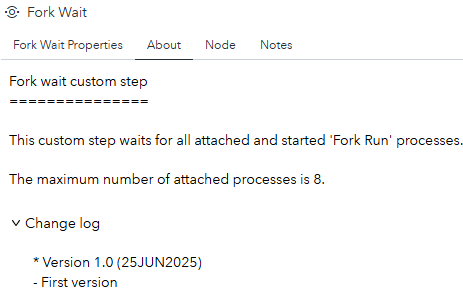
This tab provides information on what this custom does and it contains the changelog.
Output table
The custom step creates the following output table. The content is, except for two additional columns, taken from the input tables:

- id: The job execution id. The content is taken from the 'Fork Run' output table.
- job_name: The name of the deployed object the end-user specified. The content is taken from the 'Fork Run' output table.
- State: The initial value is taken from the 'Fork Run' custom step. After that, it is maintained by the 'Fork Wait' custom step.
- start_dttm: The timestamp the deployed object is started. The content is taken from the 'Fork Run' output table.
- end_dttm: This column contains the date/time for the specified state. The column is fully maintained by the 'Fork Wait' custom step.
Usage
Download the .step files, upload them into your environment and start using them, for example, as shows:
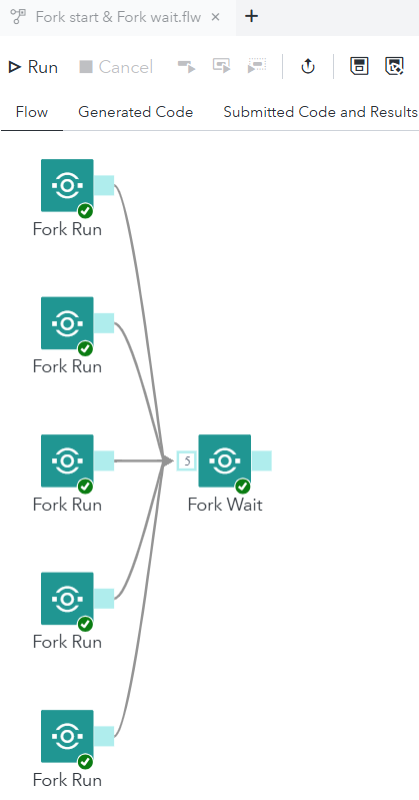
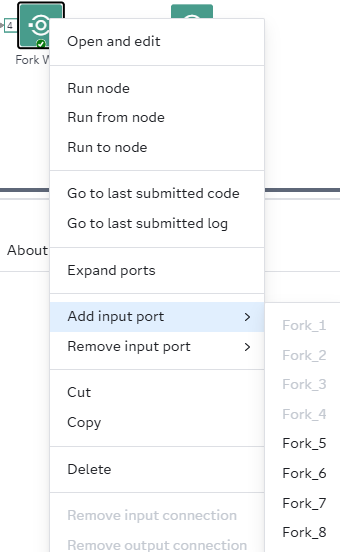
Something to be aware of, it takes a fraction of a second for the input table, for the 'Fork Wait' custom step, to appear when trying to connect the 'Fork Run' output table to one of the 8 input tables.
In version 2025.6 you need to explicitly create an input port for the 'Fork Wait' custom step before connecting the 'Fork Run' output table.
The logs for each of the started deployed objects are available via the 'Jobs and Flows' section within the SAS Environment Manager. Another option is to download each log using the Download Job Execution Log custom step. This way you also can use the LOG file scaper custom step to identify 'ERROR'- and 'WARNING' messages during the Fork run.
Custom steps defined error messages
| custom step | message | Reason |
|---|---|---|
| Fork Run | ERROR: Importants columns do not exist in the response file. Aborting process. | The columns 'name' and 'jobDefinitionUri' are missing from the response file. Are you authorized to read the metadata for the deployed object and/or are you sure the deployed object exists? Macro: get_job_uri |
| Fork Run | ERROR: Unable to open the 'items' array. Aborting process. | Is the 'dataset' already opened in the same session? Macro: get_job_uri |
| Fork Run | ERROR: The items array in the response file does not exist. Aborting process. | The response file is missing the items array. This should never happen! Macro: get_job_uri |
| Fork Run | ERROR: The response file does not exist. Aborting process. | The Viya REST API didn't return a response file. Macros: exec_job and get_job_uri |
| Fork Run | ERROR: &nbr_job_rows jobs encountered with name &job_name. Aborting process. | The Viya REST API returned 0 (=zero) or more than 1 Id for the given deployed object name. Did you deploy the SAS Studio flow or SAS program and did you enter the correct, case sensitive, name? For the custom step to start a deployed object, the object needs to be unique based on its name. The custom step can't continue. Macro: get_job_uri |
| Fork Run | ERROR: job_uri table does not exist. Aborting process. | Something went really, really wrong. This message should, fingers crossed, never be seen! Macro: get_job_uri |
| Fork Run | ERROR: No deployed object name provided. Aborting process. | It looks like that you didn't Please enter a valid deployed object name. Macro: get_job_uri |
| Fork Run | ERROR: No URI provided. Unable to execute the deployed object. Aborting process. | The macro 'exec_job' didn't receive a job URI. |
| Fork Wait | NOTE: Validation for table &table failed. | At least one attached table does not contain one or more mandatory columns. Macro: validateInputTables |
| Fork Wait | ERROR: Unable to open table &table for validation. | The mentioned attached table can't be opened for validation. Macro: validateInputTables |
| Fork Wait | ERROR: Unable to update the status table. No response file encountered. | Message from the 'update_status' macro. Might be a hick-up. This doesn't cause the custom step to abort. Macro: update_status |
| Fork Wait | ERROR: The status table, &_output, does not exist. | The output table for this custom step doesn't exist. (Macros: update_status, check_for_completion.) |
| Fork Wait | ERROR: Input validation failed. Aborting process. | Can happen if NO tables are attached to the 'Fork wait' custom step or mandatory column do not exist. |
| Fork Wait | ERROR: &exception exception(s) encountered. Aborting process. | You have specified the custom step to abort when encountering error messages from the looped object. Macro: abort_on_failure |
Change Log
Version 1 (25JUN2025) : Initial version.